How to save tab groups in Chrome and reopen them later
Save Chrome tab groups with the built-in browser feature, understand what sync preserves, and choose a tab manager when groups need notes, reminders, or project context.
Published by tabExtend on
Quick answer
Right-click a Chrome tab, add it to a group, name the group, and turn on Save group from the group menu. Chrome can keep the saved group available after you close and reopen the browser. Use a separate tab manager when the group needs notes, reminders, sharing, or a long-running project workspace.
Save a tab group with Chrome
- Right-click a tab and choose Add tab to group, then New group.
- Give the group a short outcome-based name and choose a color.
- Drag other related tabs into the group.
- Right-click the group label and turn on Save group.
- Close the group when you are done. Reopen it from Chrome's saved groups area when you need it again.
Google's official Chrome help documents creating, saving, reopening, and syncing tab groups. Browser behavior can change, so use that page as the source of truth for the current controls.
Choose the smallest tool that solves the problem
| Need | Best starting point | Why |
|---|---|---|
| Keep a few related tabs together | Chrome saved tab groups | It is built in and requires no extension |
| Collapse many tabs into a list | OneTab-style tab stash | Fast cleanup with very little setup |
| Recover windows after a crash | Session manager | Keeps dated session snapshots and history |
| Return to projects with context | Workspace tab manager | Organizes tabs by project instead of one browser session |
| Keep notes and reminders beside tabs | tabExtend | The saved pages remain attached to the work around them |
When Chrome's saved groups are enough
Stay with Chrome when you only need to label related tabs, close them, and reopen them later. Native groups are the simplest answer and avoid adding another extension to the browser.
When a visual workspace helps
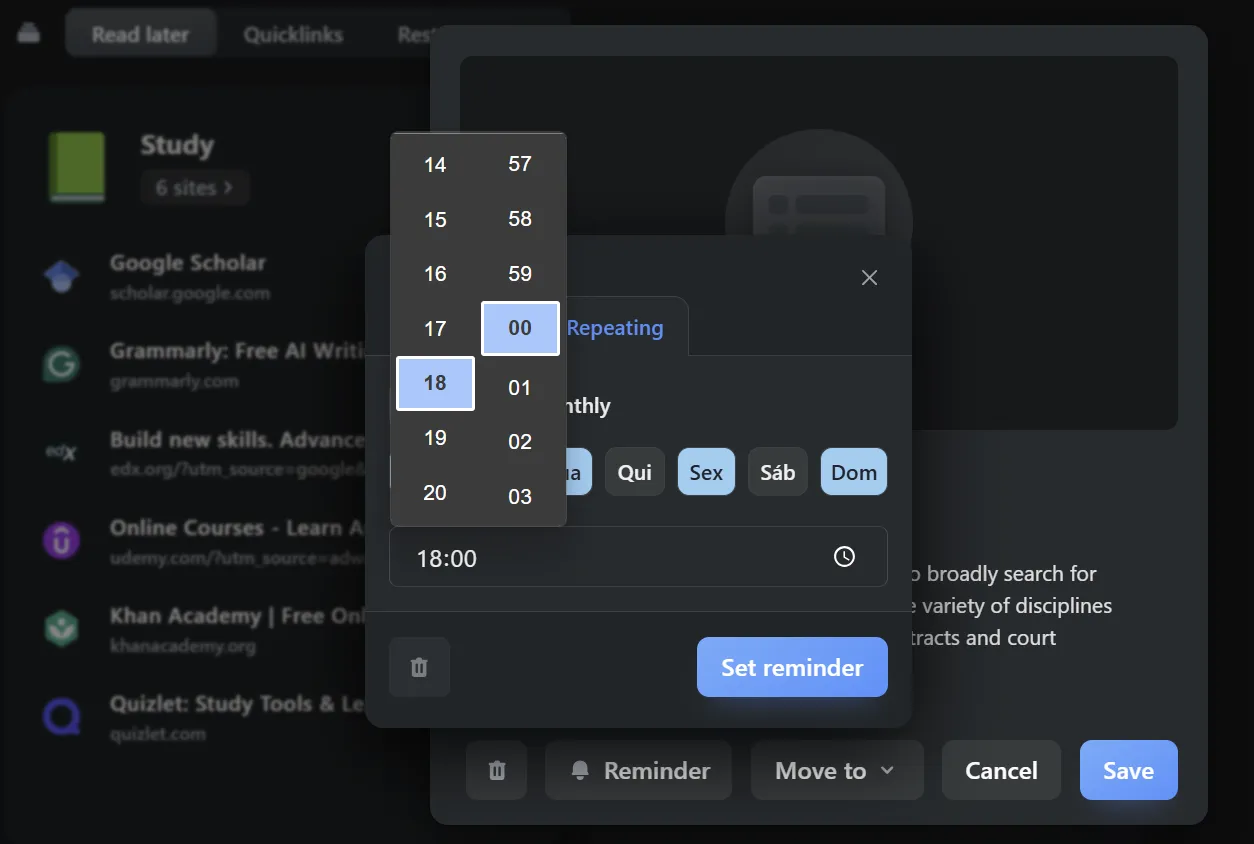
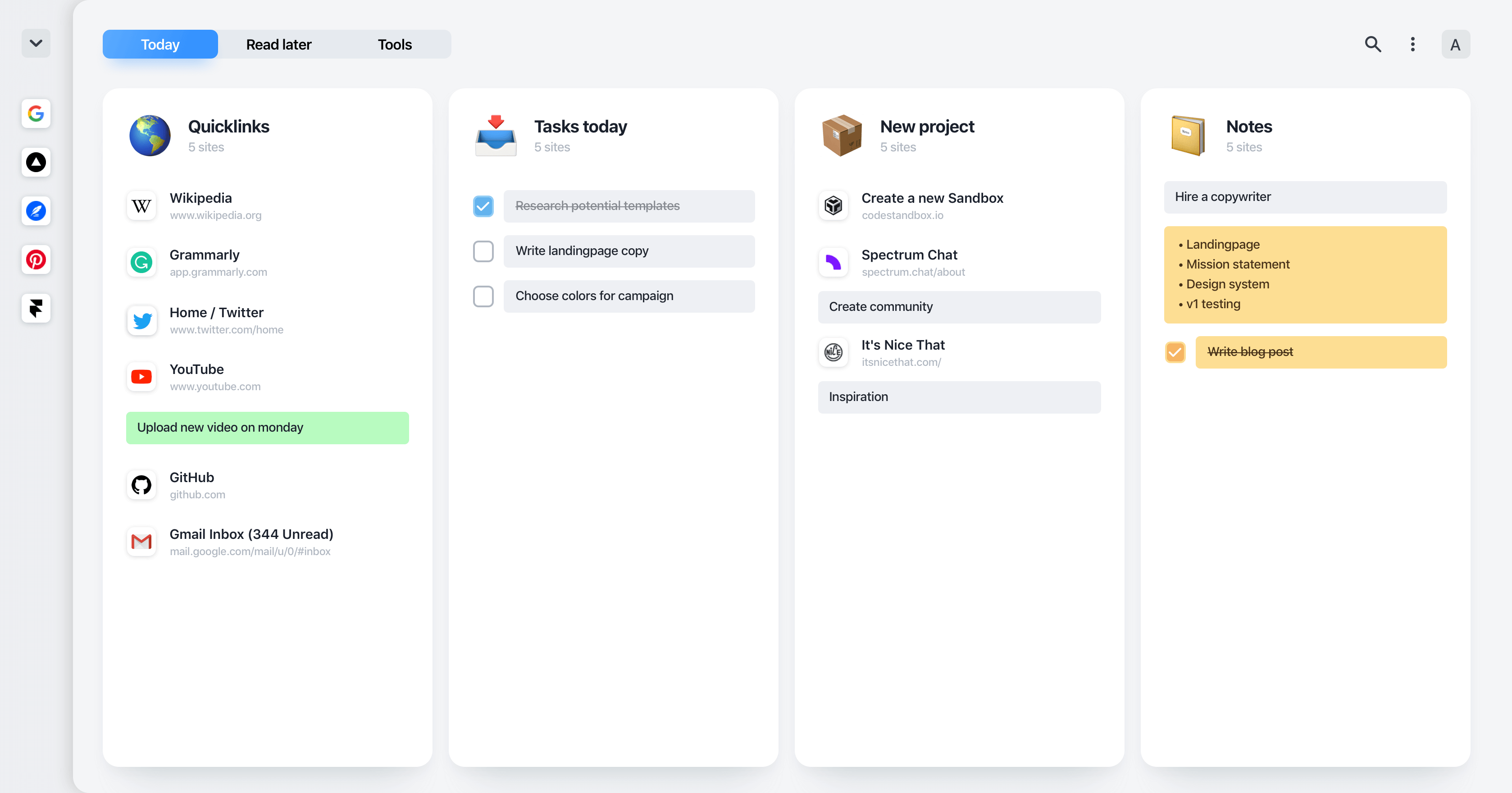
A saved group preserves pages, but a project often needs more than pages. Research needs a short explanation, a client task needs a reminder, and a course may need notes beside several resources. tabExtend saves tabs into its own visual groups and workspaces so that context can live beside the links.
tabExtend does not claim to preserve every piece of Chrome's native group state. Choose it when you want a visual project workspace rather than an exact archive of Chrome group colors and labels.
Save a set of tabs with tabExtend
- Open the tabExtend dashboard from the new tab page.
- Use the active-tabs menu to add the current window to a new group, or drag individual tabs into an existing group.
- Name the group after the project or outcome.
- Add a note or reminder when the saved tabs represent unfinished work.
- Use Open all when you are ready to resume the group.
For the product controls, see the step-by-step tabExtend save tabs guide.
Sources